
We take security seriously at Bragghost. Enabling Two-Factor Authentication (2FA) adds an extra layer of protection for your account—so even if someone gets your password, they can’t log in without a second step. If you ever need any help, reach out to our support team.
Two-Factor Authentication (2FA, sometimes called two-step verification) means logging in requires two things:
-
Something you know (your password)
-
Something you have (a code from your phone or an authenticator app)
This guide shows how to enable 2FA for your Bragghost account, how it changes login behavior, and what to do if you lose your device.
STEP 1: Before enabling 2FA, you’ll need a time-based authenticator app on your smartphone or tablet. Download and install the Google Authenticator App on your phone:
STEP 2: Log in to your Bragghost Client Area. Once you are logged in, navigate to Security Settings.
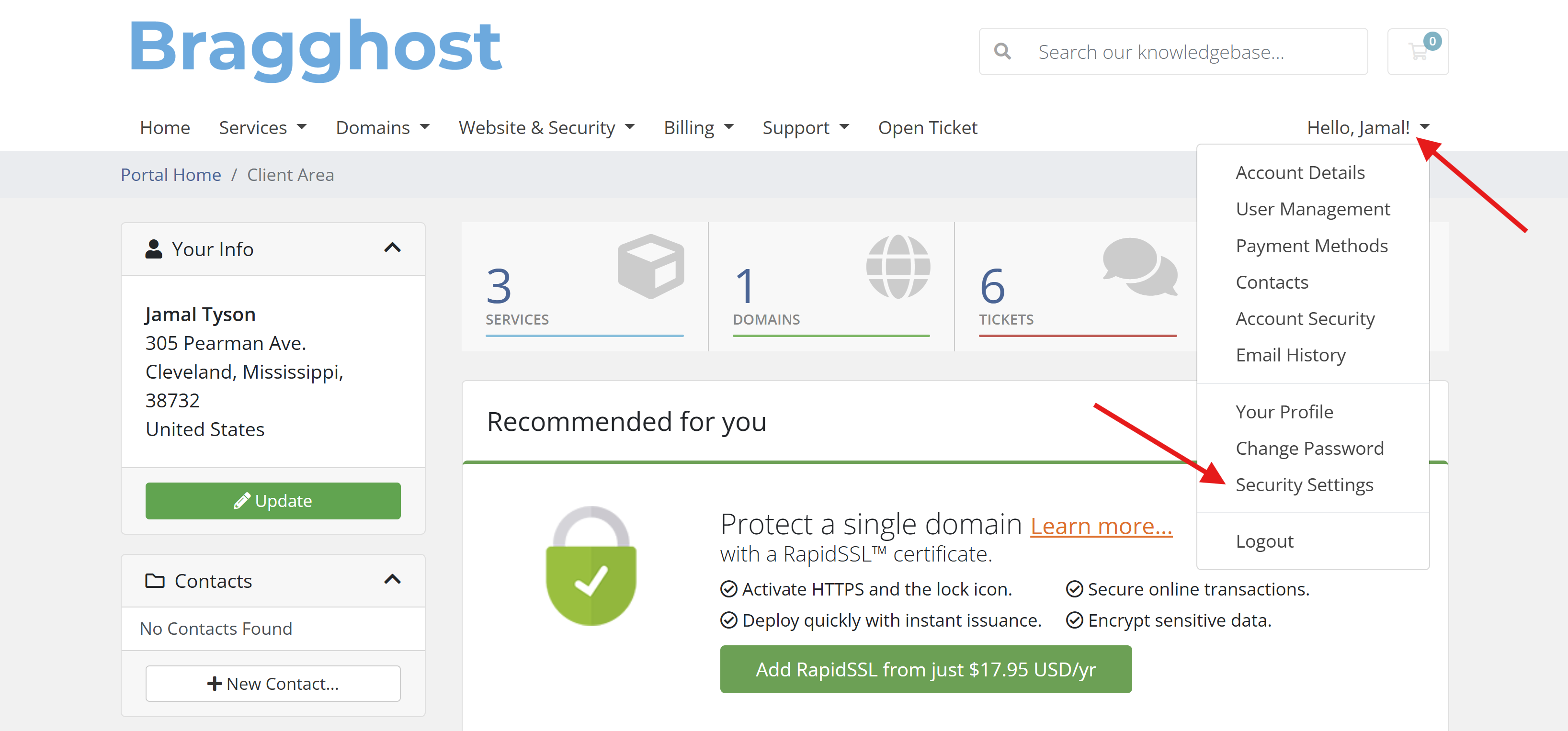
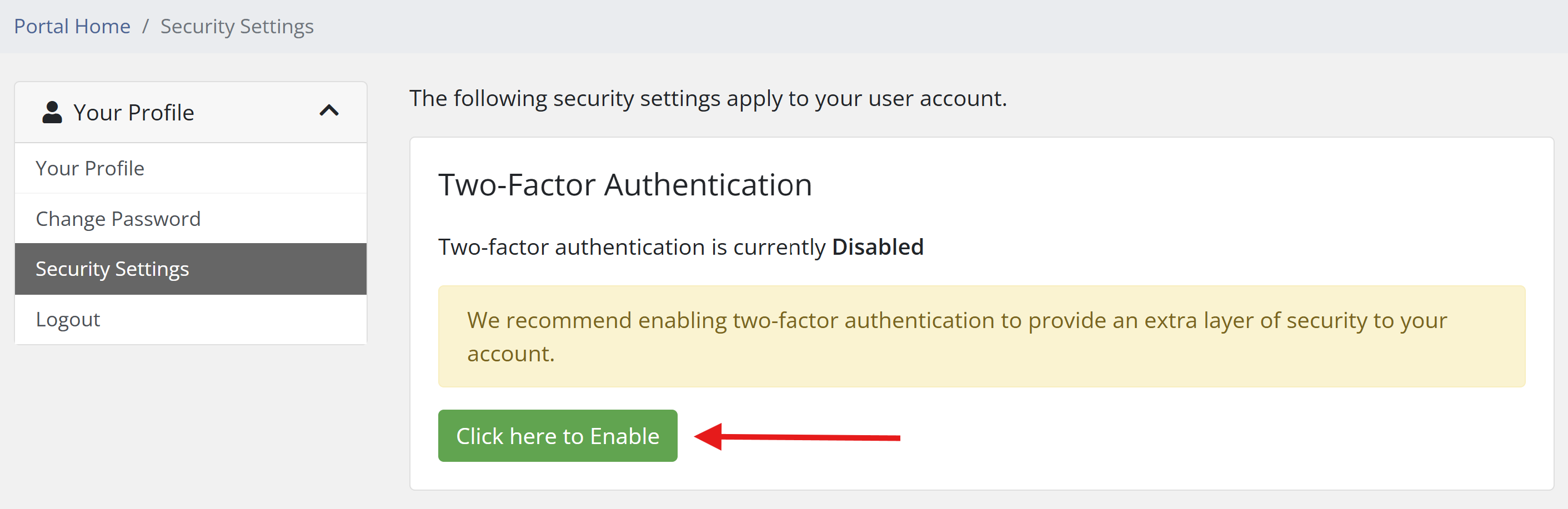
STEP 3: From the Two-Factor Authentication section, click the green button that says, “Click here to Enable.”
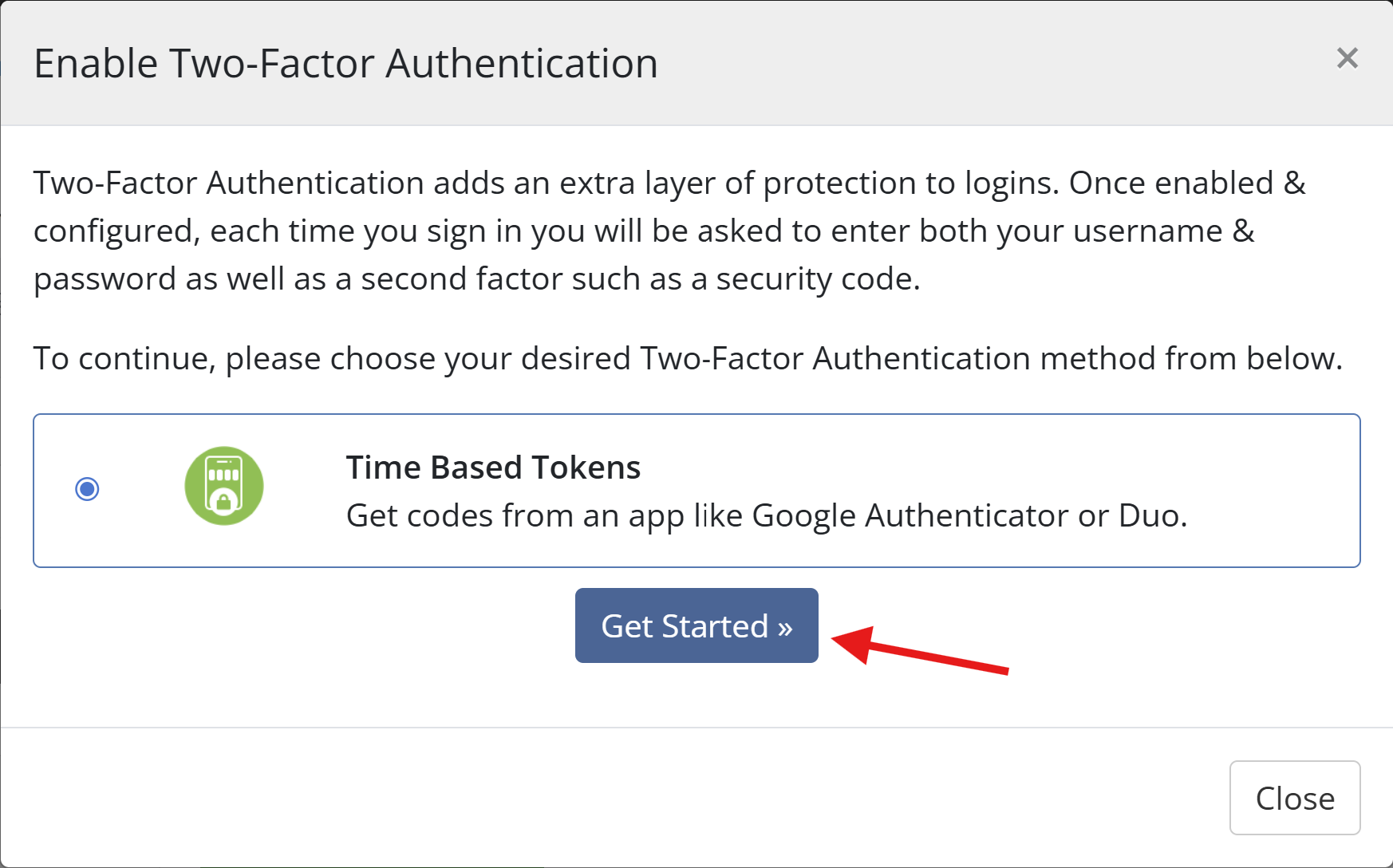
STEP 4: A pop up will appear. Click Get Started. For this tutorial we are using the Google Authenticator.
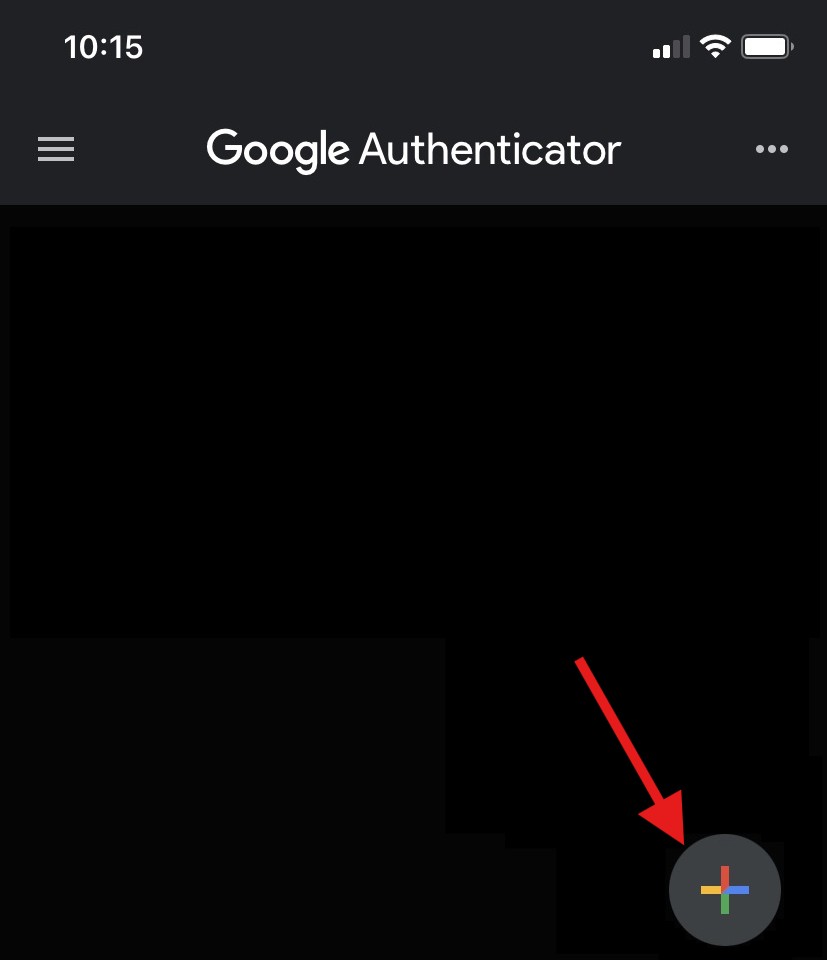
STEP 5: Use your authenticator app on your phone to scan the QR code shown on screen, or manually enter the key if provided. Use the screenshots below to guide you through both options.
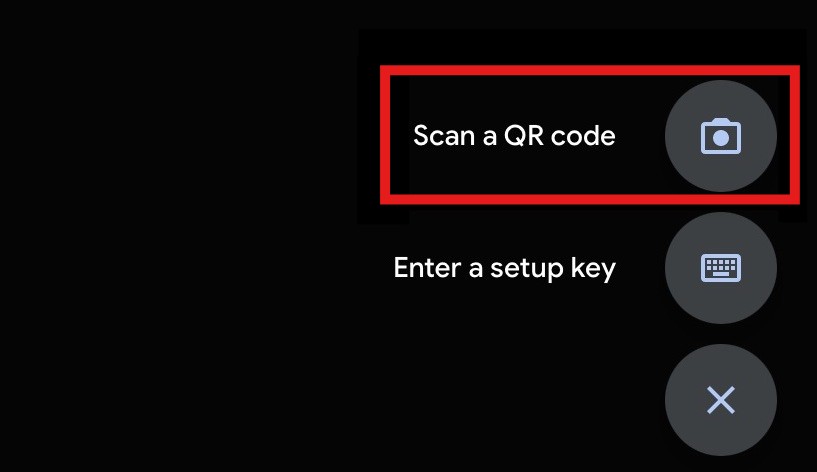
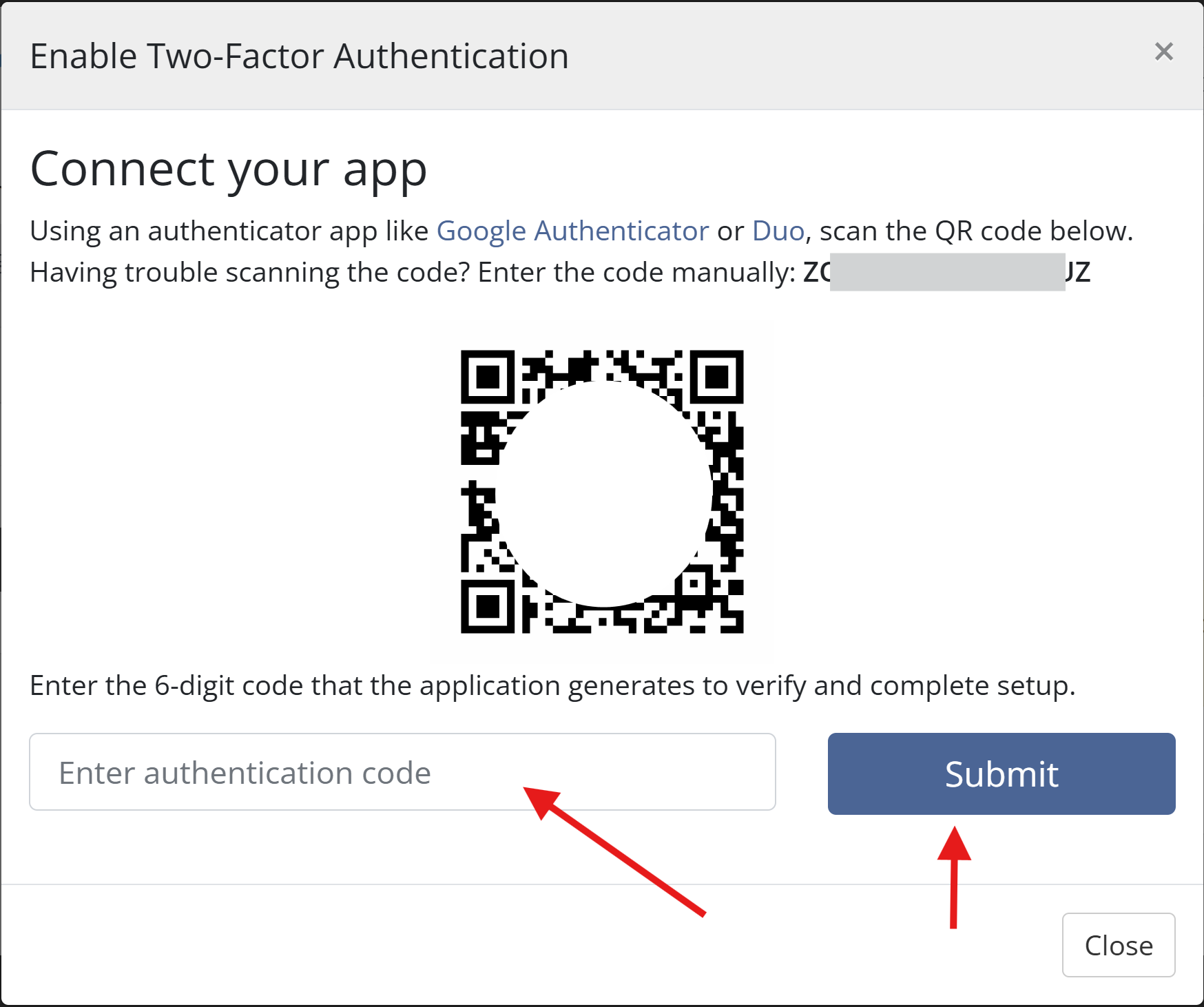
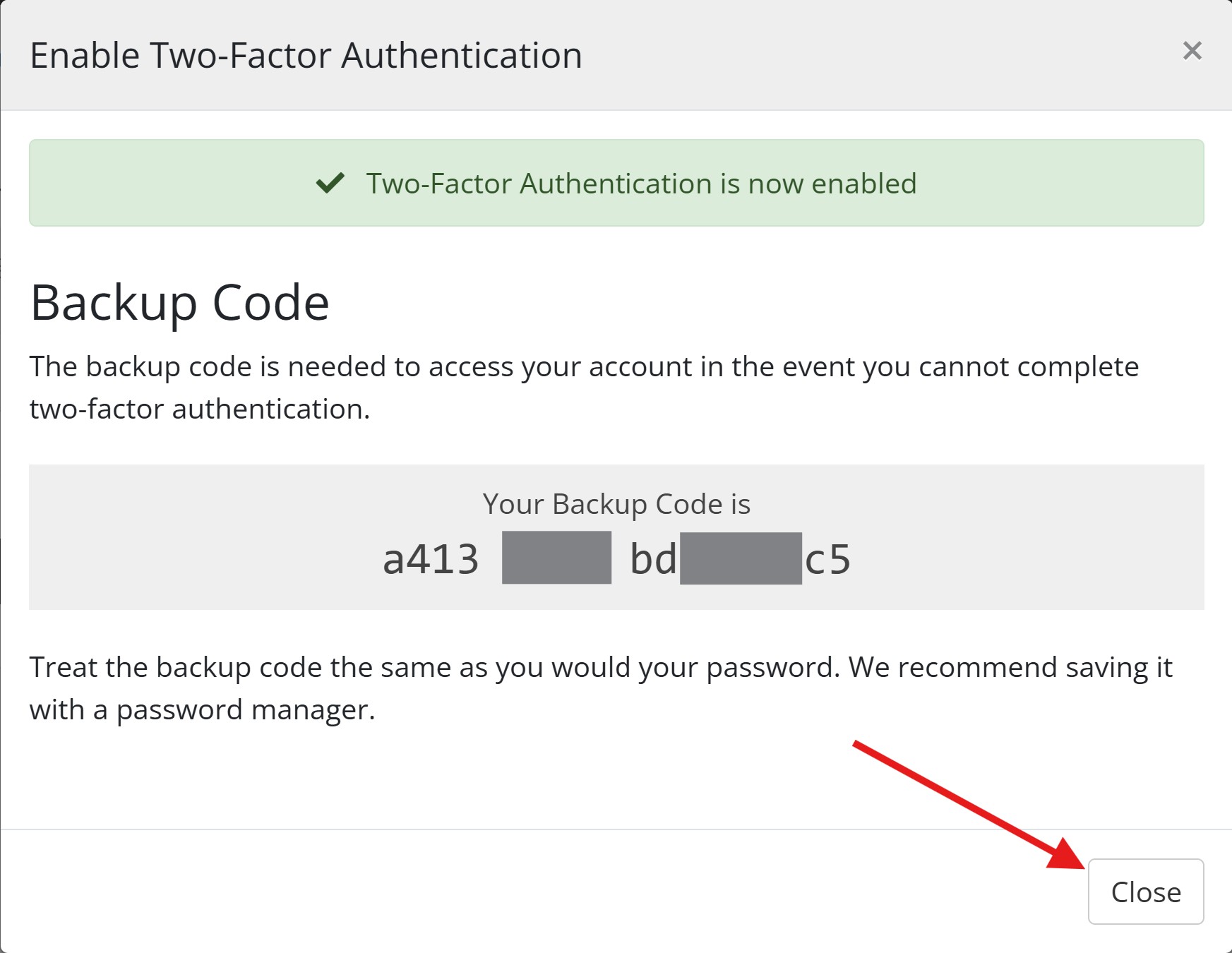
STEP 6: Once added, the app will generate a 6-digit code. Enter that into the field shown on Bragghost to confirm setup, then click Submit. Make sure to record any backup or recovery code provided. Store it somewhere safe (not just on your phone). This lets you log in even if you lose the device with your authenticator.
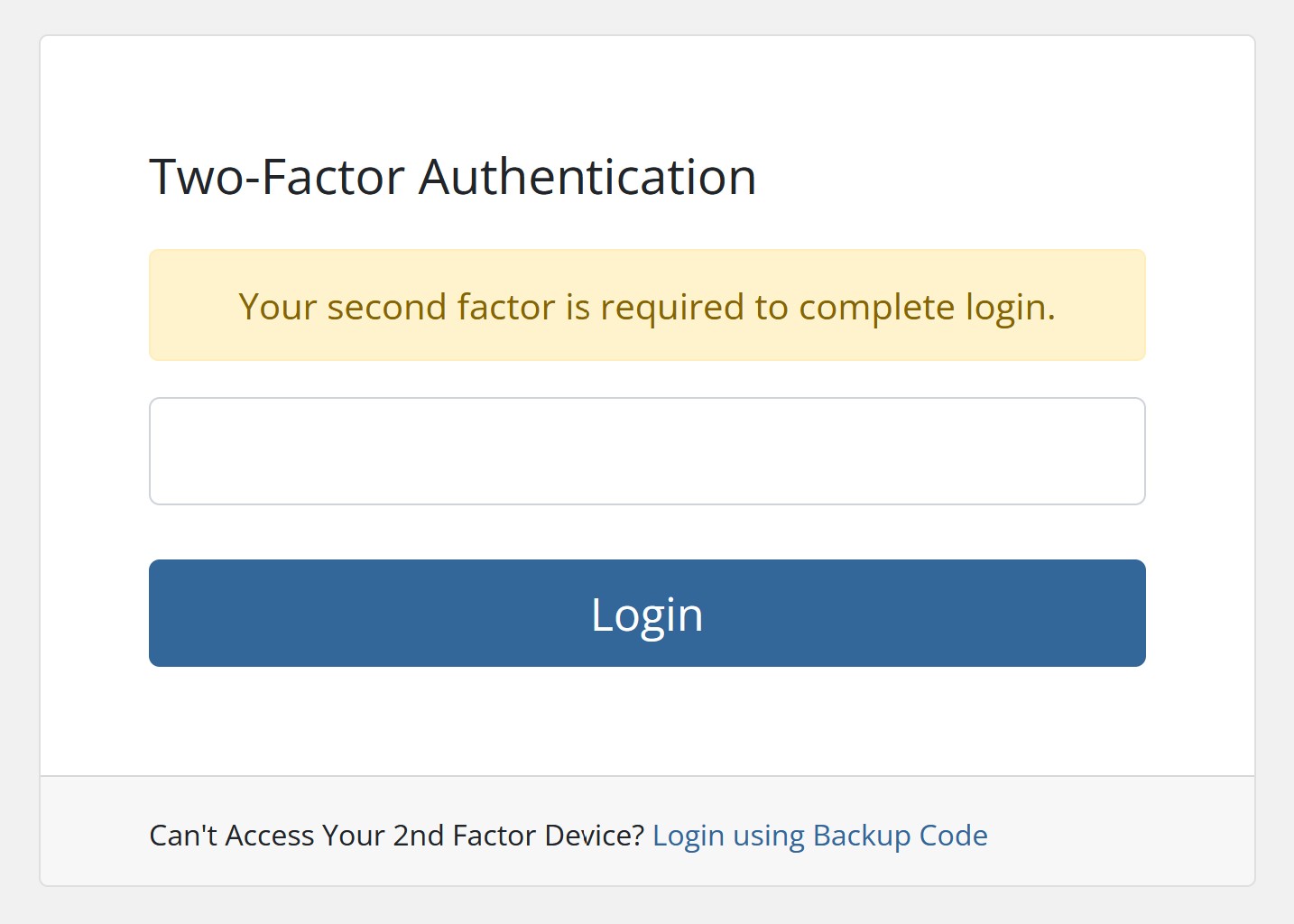
STEP 7: Test the Login. Log out, then log back in. After entering your password, you should be prompted to enter a code from your authenticator app. Confirm it works. This code 'rotates' and will change after so many seconds.
You have successfully added an extra layer of security to your Bragghost account!
