
cPanel is the control panel for your hosting—things like file uploads, email setup, databases, and more are handled there. Bragghost provides single sign-on for cPanel so you don’t have to remember a separate URL or login in most cases. This article shows you how to access cPanel, plus alternative methods if needed.
1) Log into your Bragghost Client Area.
2) Under Your Active Products / Services, find the hosting package you want to manage and click Log in to cPanel. Clicking this will automatically log you in via single sign-on (no extra username/password required for cPanel itself).
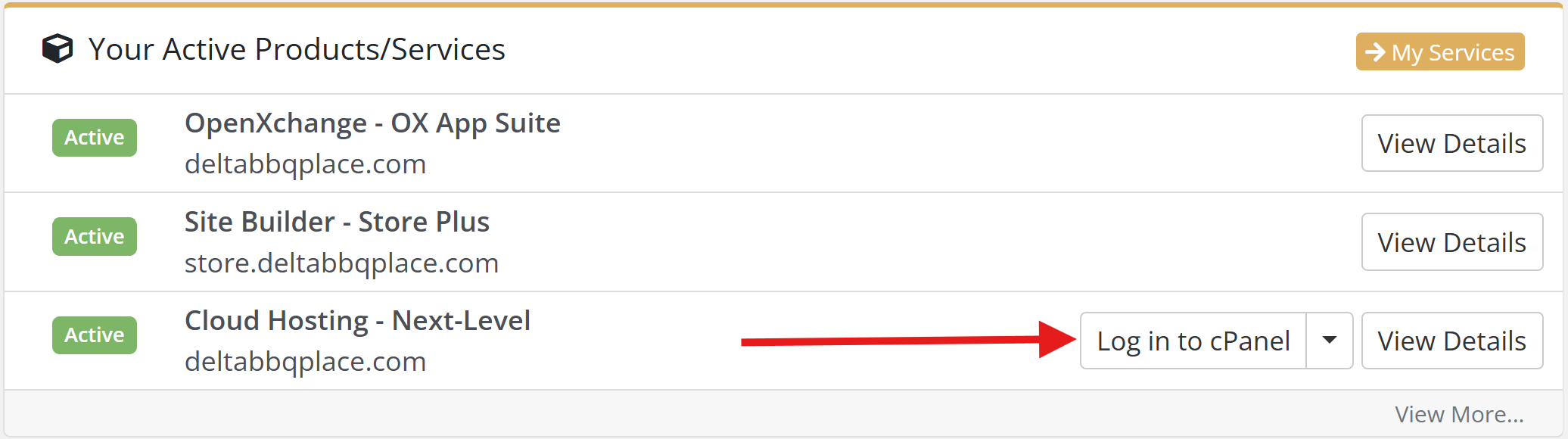
3) If you can’t use the single sign-on link, or prefer direct access:
-
via domain:
https://yourdomain.com/cpanel -
via IP:
https://[Server IP]:2083(use HTTPS and port 2083)
Enter your cPanel credentials (if prompted)
If the direct access methods above are used, you’ll need your cPanel-username and cPanel-password. These are sent in your welcome email or available under product details in your client area.
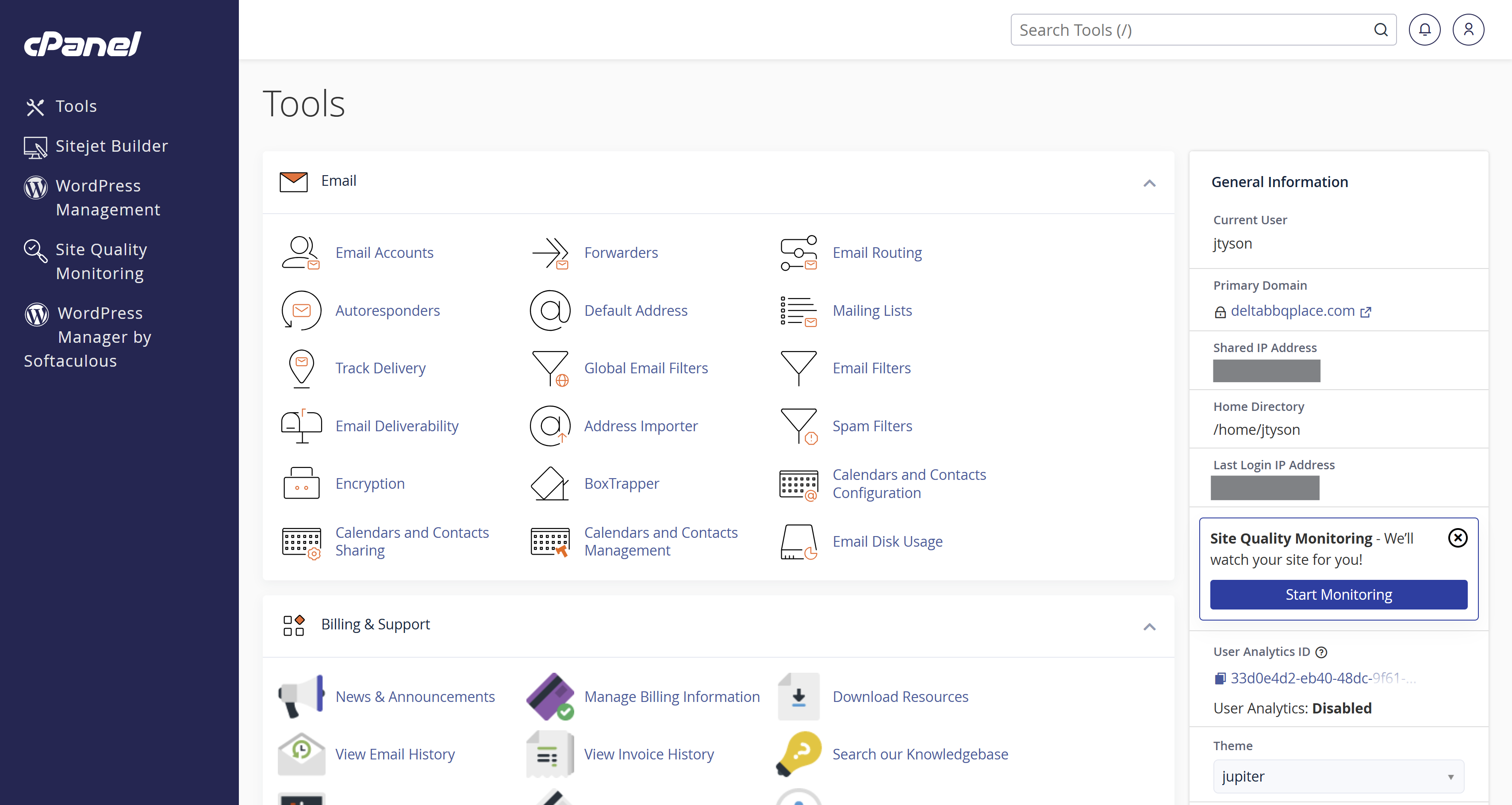
4) cPanel will launch in a new tab.
Tip: Giving cPanel Access to a Designer or Developer
If you need to provide access to a designer or developer, but do not want to give them access to your full Bragghost Client Area (not recommended), you can simply share the direct cPanel login link: https://yourdomain.com/cpanel
They can log in there using the cPanel username and password for your hosting account.
Troubleshooting
-
“Log in to cPanel” button is missing → Check if your domain is active, payment is complete, and account is provisioned. If everything is set up and you still don’t see it, contact support.
-
Error with domain/cpanel URL → Either DNS hasn’t propagated yet, or domain isn’t pointing to Bragghost nameservers. Try the server IP login or wait until DNS updates.
-
Forgotten cPanel password → Use the password reset link (if available) or contact support to have credentials reset.
