
Sub-accounts let you give other people (team members, developers, etc.) access to parts of your Bragghost account without sharing your main login. You control what they can and cannot do. This guide shows you how to set up a sub-account and what permissions are available.
1) Log in to your Bragghost Client Area.
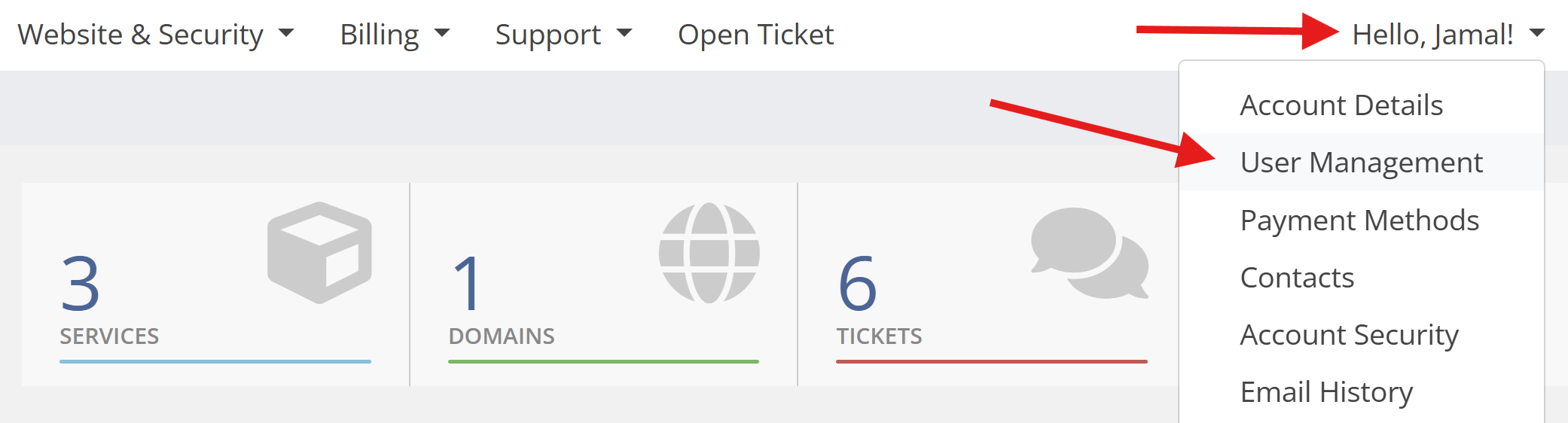
2) Navigate to the dropdown next to your name, the click User Management.
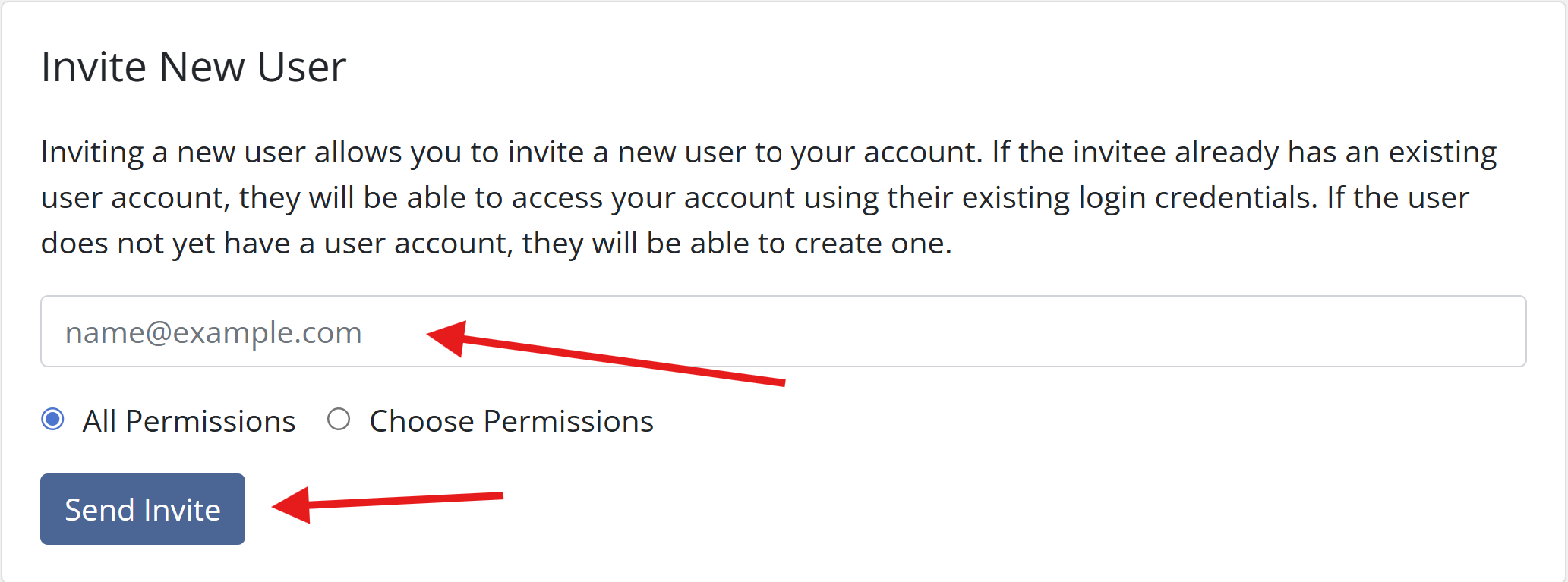
3) Enter the email address of the person you want to add, then click Send Invite. The email address will be the login for the sub-account).
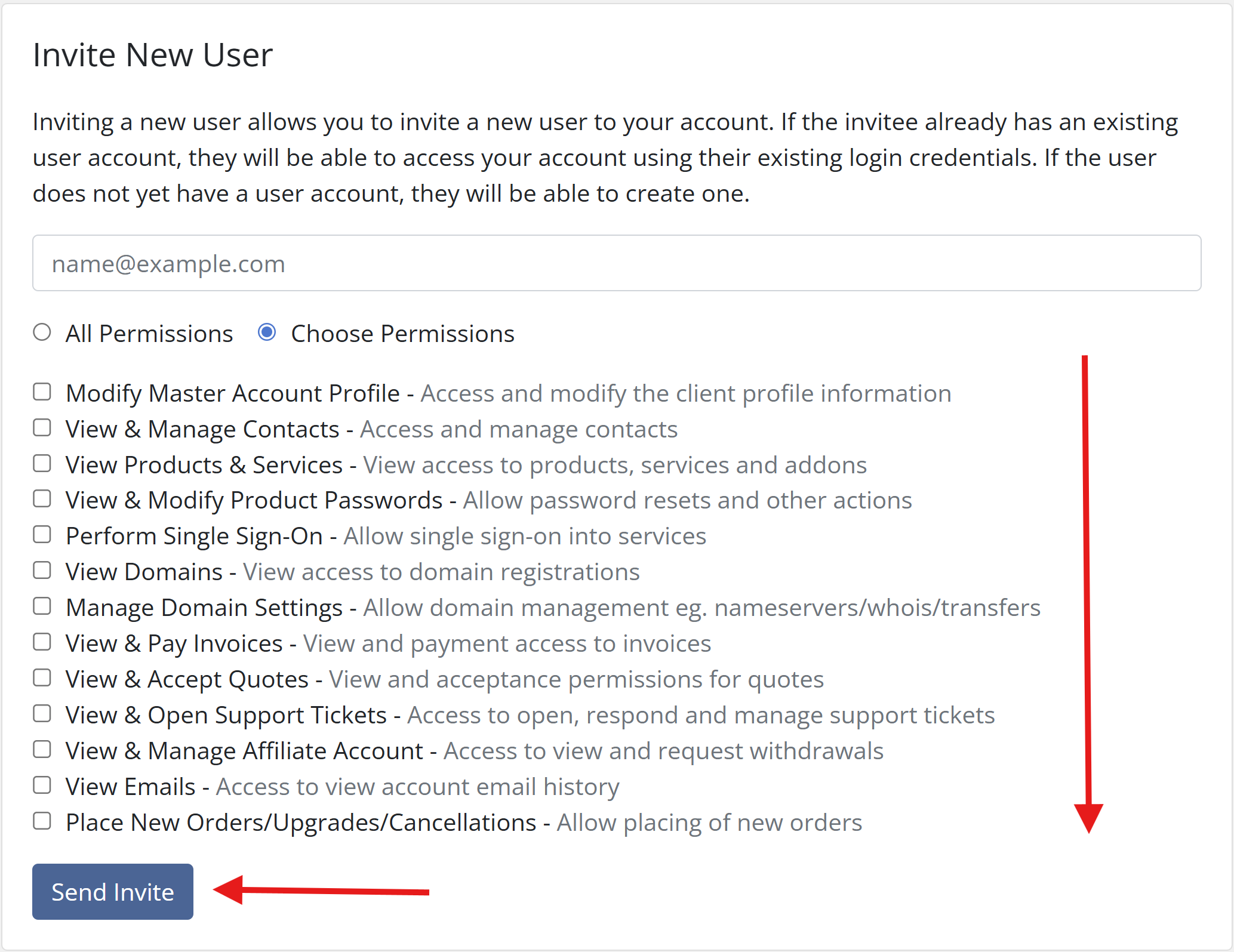
4) If you don't want the sub-account to have all permissions, you can also customize the permissions.
Once created, the sub-account user will receive an email or needs to log in with the provided email/password. You may need to provide instructions to them.
Security Tips
-
Only invite people you trust.
-
Assign the minimum permissions necessary.
-
Encourage sub-account users to set strong, unique passwords.
-
Remember: activity by sub-accounts is tied to your primary account, so you’re ultimately responsible for compliance.
Troubleshooting
-
Didn’t get the invite? Check the spam/junk folder or whitelist Bragghost emails.
-
Wrong email entered? Delete the invite and re-send to the correct address.
-
Need to revoke access quickly? Disable or delete the sub-account from the User Management section.
